FREE LESSON / 01 — BUILD
Make the first screen.
A useful website starts with one clear answer: who is this for, and what should they do next?
Free preview · Use a computer, a browser and your own AI assistant. This page creates a prompt; it does not call an AI service.
01 / GET SPECIFIC
Meet Rinse.
Rinse is our fictional mobile-detailing business. A visitor needs to understand the service, decide whether it fits and find a way to inquire. The first screen should make that easy.
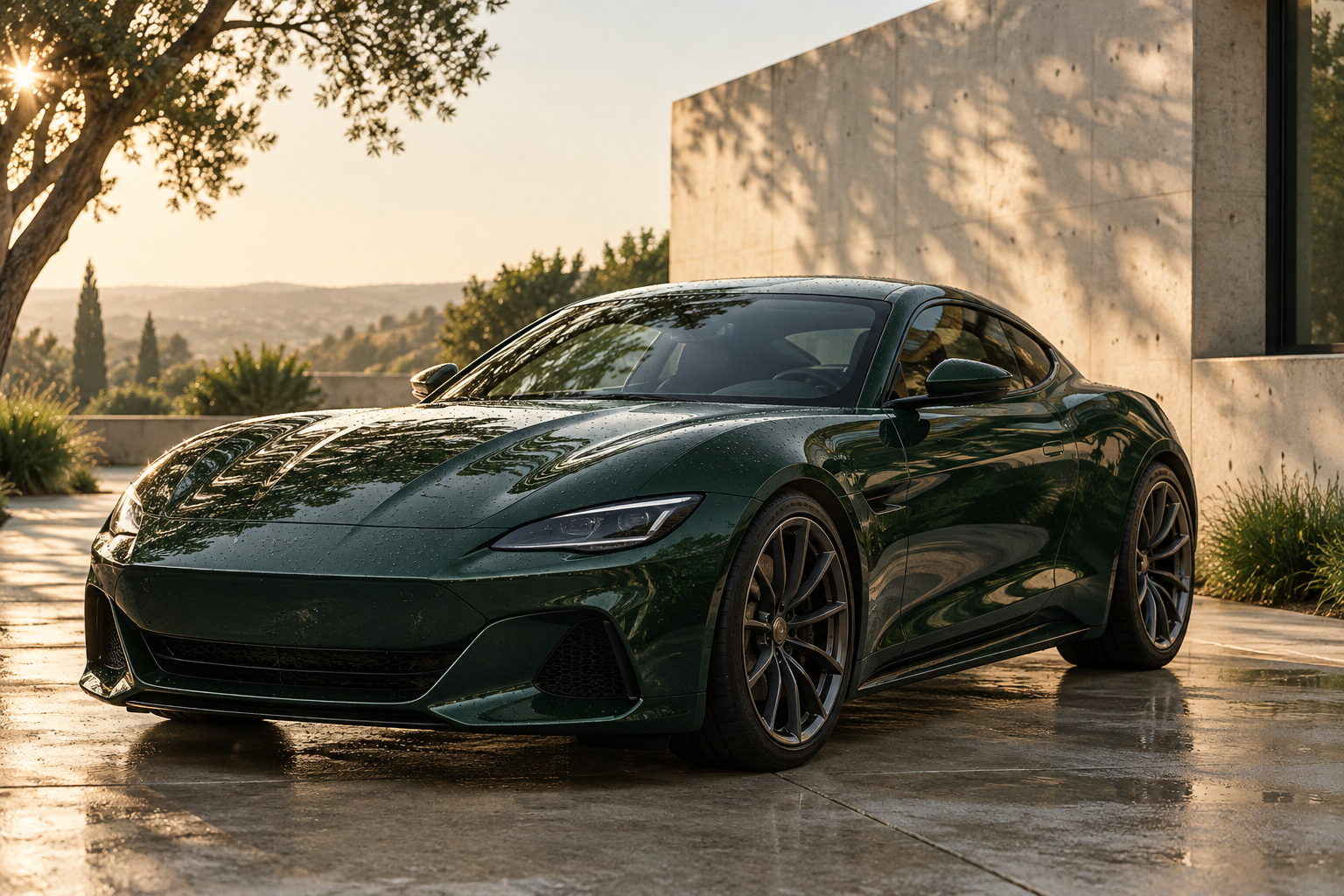
Our reference uses a quiet green palette, a clear headline, a car image and one useful next step. The exact look is yours to change.
“Mobile detailing in Oak Grove” is a useful example. “The town's #1 detailer, trusted by 5,000 customers” invents evidence. Keep this project clearly fictional until a real owner supplies approved facts.
02 / GIVE THE AI A JOB
Your first build brief.
Use the example or make up another practice business. These fields only change the prompt below; nothing is sent to an AI.
Use fictional information here. Your text stays in this page and is not saved.
03 / BUILD A SMALL FIRST VERSION
Make one screen work.
- Open your AI assistant and start a new conversation. Check your remaining usage before starting.
- Paste the brief. Ask for a downloadable index.html file with its styles included. Keep this first version small.
- Download the HTML file into a new project folder. Open it with your browser. If your assistant only returns code, copy the code into a plain-text editor, save it as index.html (not index.html.txt), then open that file.
- Read every word and correct invented claims. Try the “Explore services” link, then narrow your browser window. The link should reach the services placeholder and the page should fit without sideways scrolling.
The result will vary. You are learning to direct and review an AI assistant, so your layout doesn't need to match our example pixel for pixel.
The first result looks wrong. What should I say?
Give a specific observation and a limited change. For example: “At a narrow phone width the headline runs off the right edge. Fix that layout without changing the headline, colors or other sections. Explain what you changed so I can check it.”
I reached a usage limit.
Stop and check the account's usage screen. You can wait for the next allowance or decide whether a paid plan suits you. Don't buy more usage just because an unfinished preview tells you to. Use your AI provider's own plan page for its current limits and prices.
04 / LOOK AT WHAT YOU MADE
Does it do its job?
Check these in your own preview. Marking them records your review; this page cannot inspect or certify a website in another tab.
0 of 5 checks marked complete.
Checklist marks are saved only in this browser. They are not an assessment or a certificate.
You have a focused brief, a first screen and specific checks for its quality. The full project continues through services, inquiries, testing, publishing and handoff.
Already have a full website? Find your next fix ↗
Was the next step clear?
We’re looking for beginners to test the complete Rinse draft and show us where the instructions need work.
Explore the free beginner pilot ↗FREE HANDS-ON EXERCISE / EDIT + CHECK
The button clicked.
Did the right thing happen?
A website can look finished while a small interaction is broken. In this practice copy of Rinse, “Choose Inside” takes you to the form but leaves the service blank. The other two buttons work.
Your job: find the mismatch, make one small repair and check the whole service-selection route again. Try it with your own AI assistant, or use the written hint below.
ZIP · 6 files · Computer + browser + plain-text editor. No account, installation or API key. This intentionally broken learning copy sends no inquiries; do not publish it as a client site.
- Open it. Extract the whole ZIP and open README.txt, then index.html. Keep the files and assets folder together. Choose Outside, Inside and Whole Car, and note what each actually selects.
- Keep a recovery copy. Duplicate the extracted folder. Edit only the duplicate; open its index.html in both your browser and a plain-text editor.
- Ask for a focused repair. Give your own AI assistant index.html and app.js with the prompt below. Read its proposed change before accepting it.
- Save, refresh, retest. Each button must select its matching service and focus the Name field. Try Tab and Enter too. Fill in a fictional inquiry and confirm the selected service appears in its practice summary. Nothing is sent.
In this fictional practice site, Choose Outside and Choose Whole Car select the correct service. Choose Inside moves to the form but leaves its service blank. Find the cause. Propose the smallest repair, show the exact changed line, and explain why it works. Keep the form in practice mode. Do not redesign the page, add dependencies or change unrelated content. Tell me which checks to repeat.
I need a hint.
The buttons carry a data-service value. The JavaScript copies it into the service dropdown. Compare the Inside button’s value with the available dropdown options. The visible button label and the value behind it are different things.
Show the repair and why it works.
In index.html, replace data-service="Interior" with data-service="The Inside". Keep the dropdown option and visible label unchanged. The value now matches the existing option. Save, refresh and retest all three choices.
This is a deliberate teaching example, not a real client incident. A successful repair shows that this interaction works; it does not certify the entire website.
Keep three lines of evidence.
- What I expected, and what actually happened.
- The one change I accepted, and why.
- Which buttons and form behavior I checked afterward, plus anything still untested.
Observe a specific result, make a controlled change and check the result again. The full Rinse project carries that method through eight written lessons, publishing, tracing a real test inquiry to its destination and handing over usable files. It starts from a supplied website folder, as this exercise does.
See the full project and current availability ↗
Want to test the complete draft? See the free beginner pilot ↗